

Version Statuses
The Version Status feature allows you to track and manage different versions of your application. You can mark a version as Available, Deprecated, Unavailable, Failed, Rolled back, Live.
All available version statuses
Each application version is assigned a status to indicate its availability:
-
Live
Indicates the version is active and running in one or more environments. -
Available
The version is active and ready to be deployed at any time. -
Rolled back
The version was rolled back either automatically, programmatically via CI / CD. -
Failed
The version is failed on one of the testing stages. -
Deprecated
The version is outdated and should no longer be used. Version is still usable but is scheduled become unavailable. -
Unavailable
The version is no longer accessible for deployment.
Using Version Status
You can view version statuses at the application level under the Versions tab.
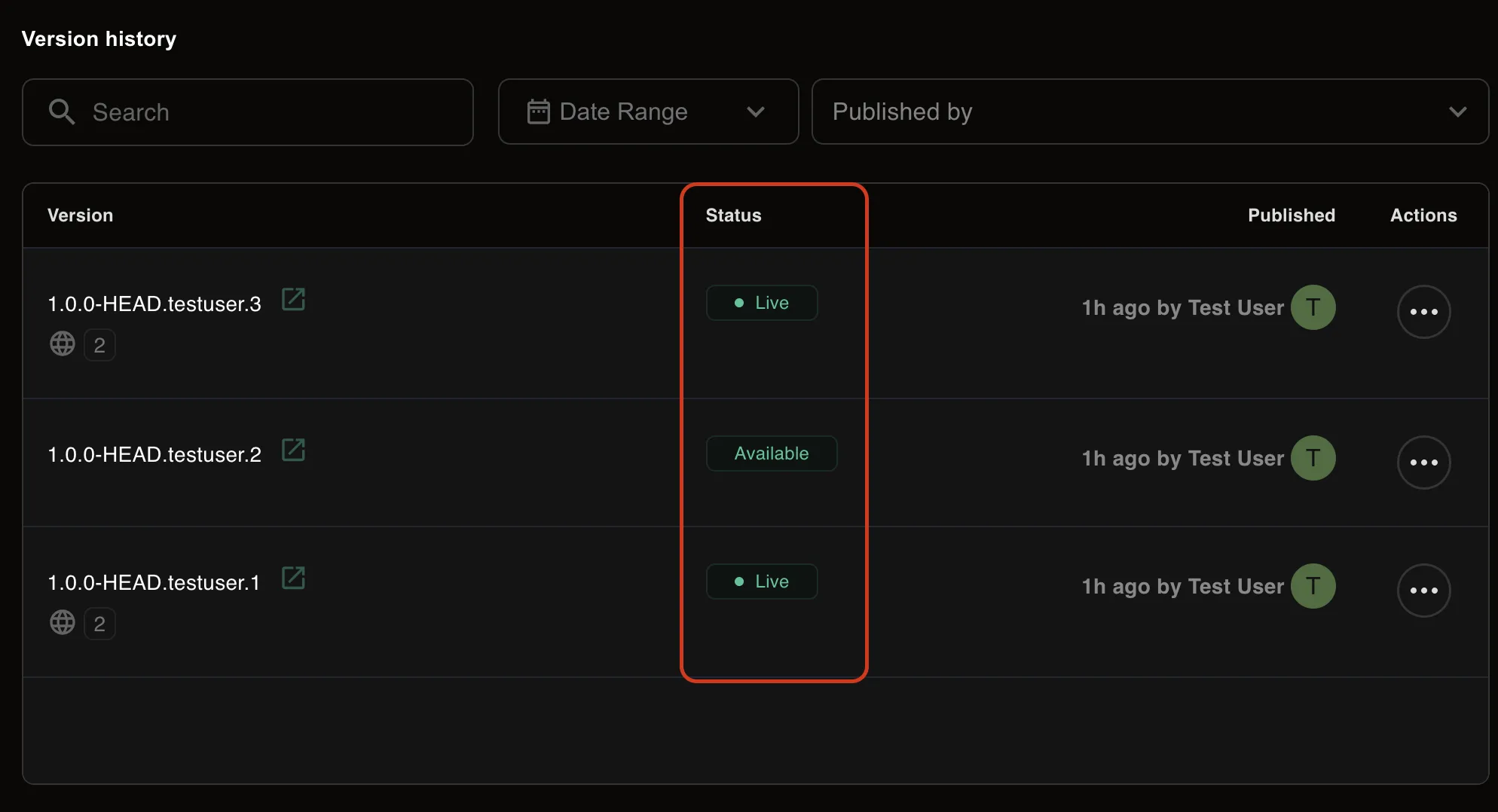
You can check version status in Version List Table. Version statuses are displayed in the Status column.
Updating Version Status
To update a version’s status, click the Actions button next to a version in the list.
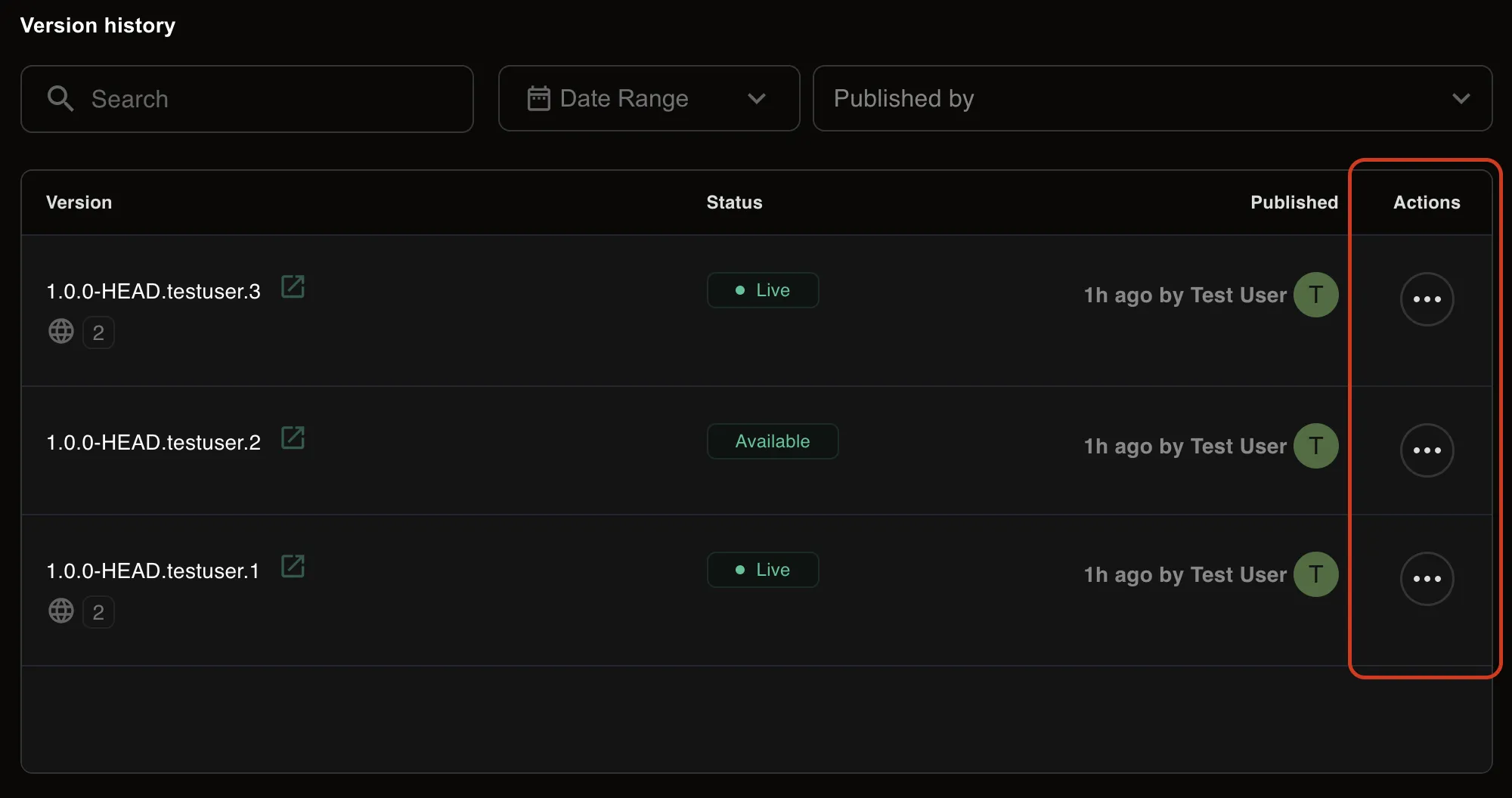 This will open a dropdown menu with the following options:
- Deploy Version
You can deploy version with any status except unavailable. If you attempt to deploy a Deprecated version, you will see a warning message. You must acknowledge the risks by checking a confirmation box before proceeding.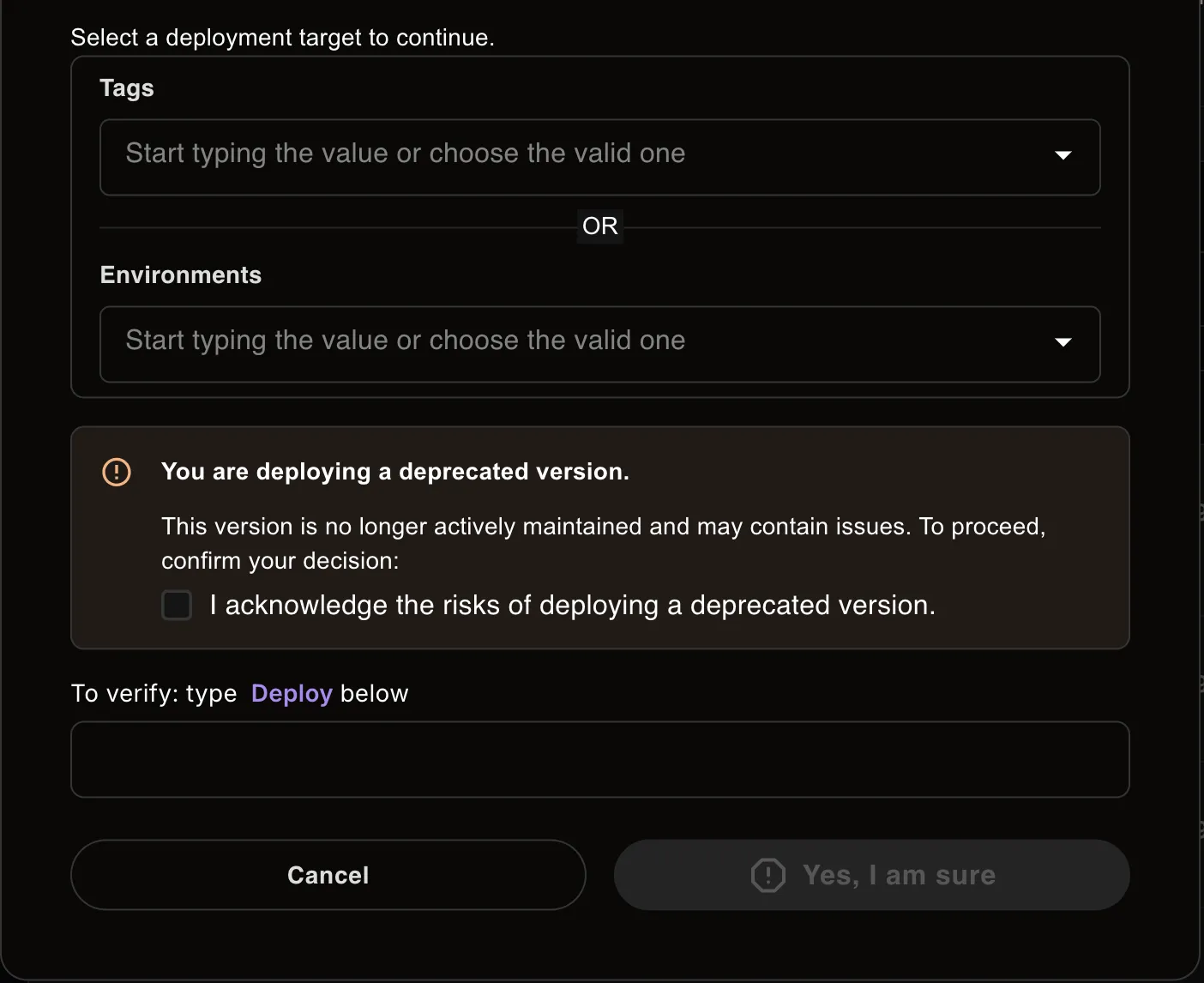
- Set Version as Available
If a version is currently Deprecated or Unavailable, you can restore it to Available by selecting this option. No additional input is required—simply confirm the action. - Set Version as Deprecated
Marking a version as Deprecated indicates that it will be phased out soon. You will need to specify a date and time until which the version remains available. After this period, the version will automatically transition to Unavailable. - Set Version as Unavailable
If a version should no longer be used, select Set as Unavailable. You’ll be prompted to enter a reason, which will be displayed when users hover over the status. You can't deploy unavailable version. You can only change the version status for such version. But remote host is still available.